Welcome to your training home
Everything your coach builds for you lives here: today's workout, your chat with them, your progress, and your schedule. There's no account to create and no password to remember.
Your link is your sign-in
Your coach sent you a private link. Tapping it opens your portal and you're in. No login, no password. The app remembers you on that device, so after the first time you can just re-open it.
New here? Read Open & install next, then Getting around, and you'll know your way in five minutes.
Open & install
Open the link once, then add it to your home screen so it opens like a real app: full-screen, and it even works with no signal at the gym.
Add it to your home screen
iPhone (Safari)
- Open your link in Safari and wait for your program to load.
- Tap Share (the square with an up-arrow), then Add to Home Screen.
- Tap Add. Launch it any time from the new icon.
Android (Chrome)
- Open your link in Chrome and let it load.
- Tap the ⋮ menu, then Add to Home screen.
- Confirm, and the icon appears in your app drawer.
Works offline
After one online load, the app keeps a copy of your program. Open it with no signal and you'll see "Offline. Showing your last saved program." You can view routines and log a full workout offline. It saves on your phone and syncs the moment you reconnect. Only videos need a connection to upload.
The first questions
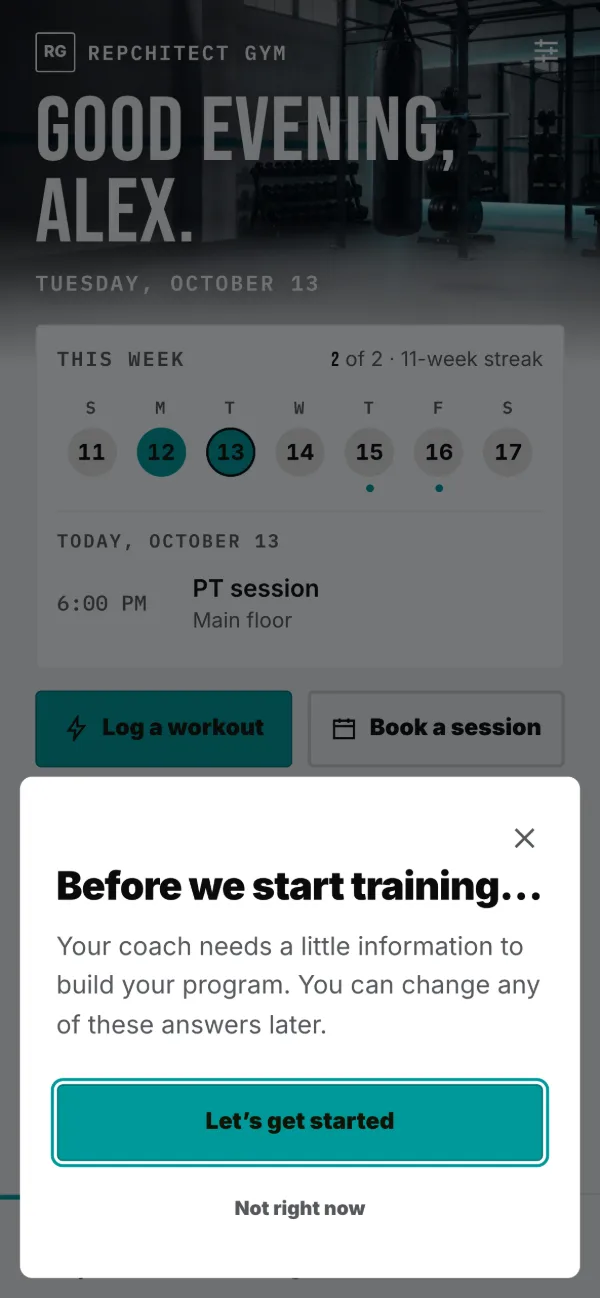
The first time you open your link, your coach asks a few things so they can build your program. Six short screens, and you can skip the lot.
What you are asked
- What you want to get out of this.
- What equipment you can get to.
- How you would describe where you are now.
- How many days a week you can train.
- Anything injured, sore or off limits.
- Anything else they should know.
Next always moves on, whether you answered or not, and you can change any of it later. If you would rather get straight to training, Not right now closes it and it asks again next time.
Getting around
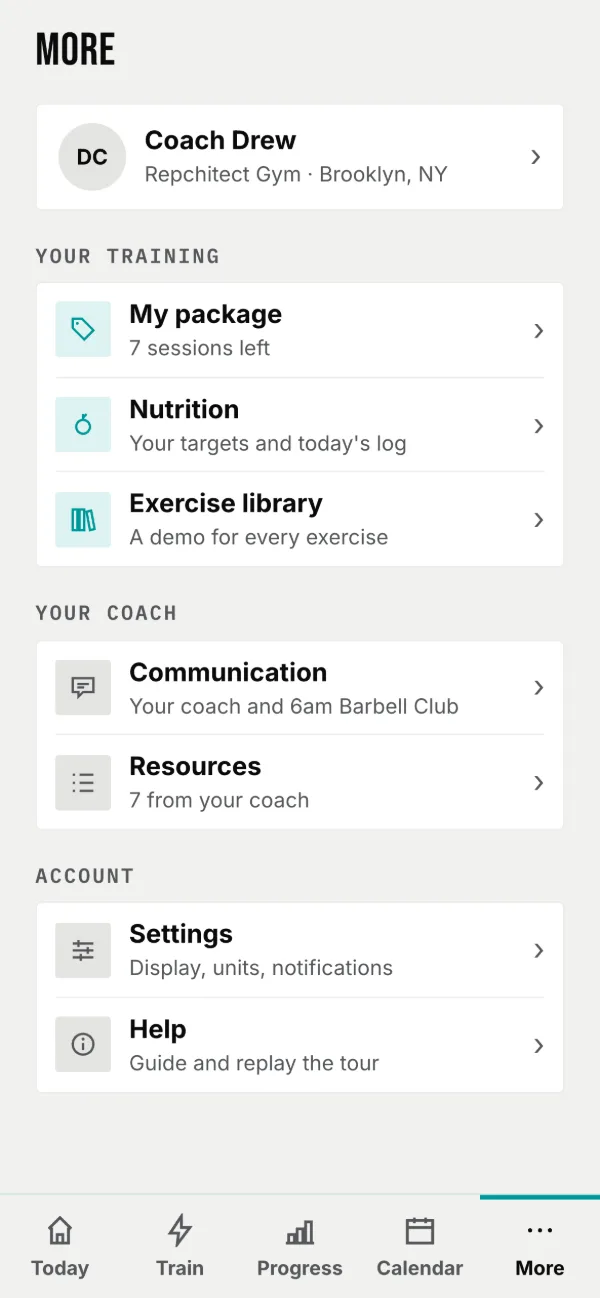
Five buttons along the bottom get you everywhere. A "More" button opens the rest.
| Button | Opens |
|---|---|
| Today | Your home screen: today's plan & coach messages. |
| Train | Pick a routine and do your workout. |
| Progress | Your stats, measurements, and history. |
| Calendar | Your sessions, workouts, and rest days. |
| More | Your coach, your package, Nutrition, the exercise library, Communication, Resources, Settings and Help. |
Your Today screen
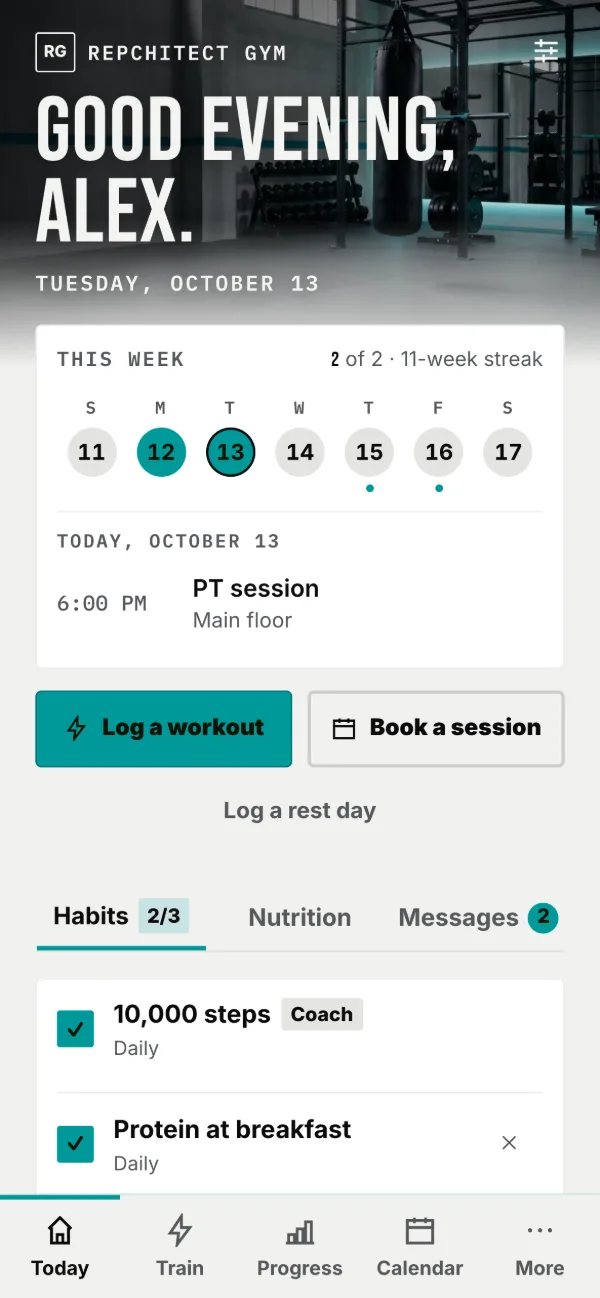
Today is your daily home: a greeting, your week with today open, and your Habits, Nutrition, and Messages.
Top to bottom you'll see:
- Your coach's brand over their header photo, with the gear for Settings, then a greeting and today's date.
- This week: the days you trained filled in, today ringed, how many you have done against your weekly target, and your streak. It opens on today: your sessions, the workout your coach planned, and anything you already logged, in time order. A booked session whose time has come has a Mark done button. Tap another day to see it, or tap today again to fold it away. A day with nothing on says Nothing scheduled for today.
- Two buttons: Log a workout and Book a session (it appears once your coach has published bookable times), with Log a rest day as a link under them.
- The Habits · Nutrition · Messages hub, where you tick habits, log food, and read coach messages without leaving Today. Check-in prompts and new-message alerts appear here too.
Habits
A daily tick-list on your Today screen: water, steps, supplements, whatever you and your coach decide to track.
- Tick each habit as you do it; streaks build day by day.
- Add your own habits any time, and delete them freely.
- Habits your coach created, including supplements from your nutrition plan, can only be removed by them.
Start a workout
Pick today's routine, read your coach's last note, then start. You can follow the guided one-at-a-time mode, or log it all on one screen.
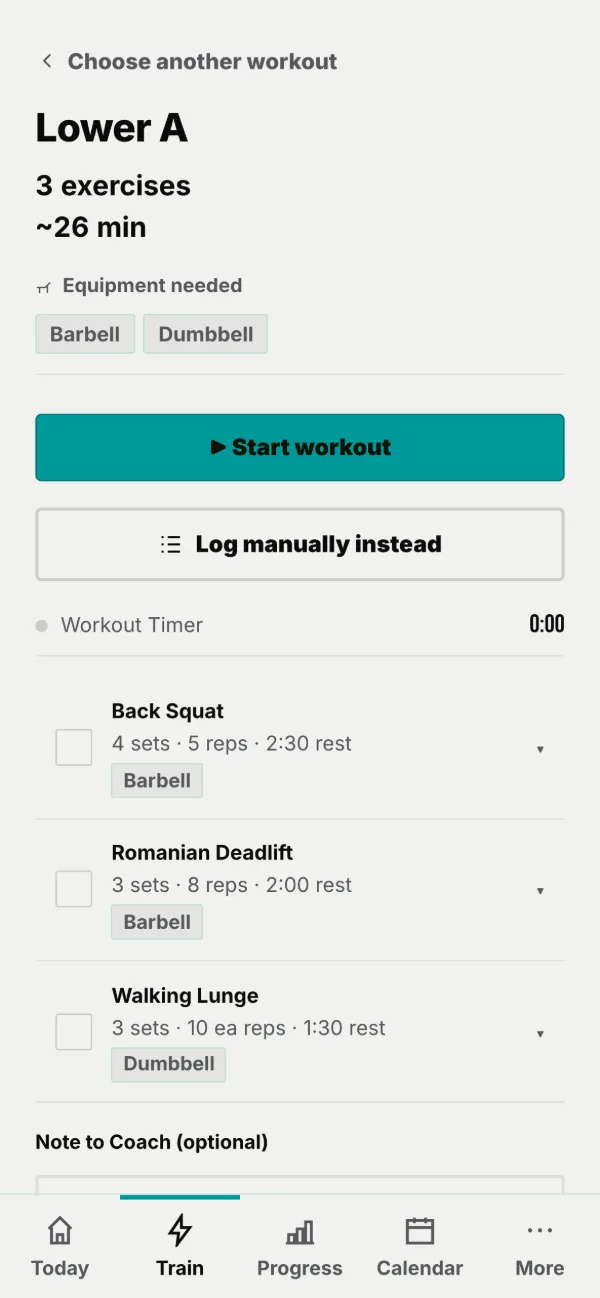
- Tap Train (or Log a Training on Today). If you have more than one routine, tap the one for today.
- Read the COACH'S LAST FEEDBACK card at the top. It's their note from the last time you did this workout.
- Check the equipment banner so you've got what you need.
- Tap ▶ Start workout for the guided mode, or Log manually instead to log everything on one scrolling screen.
On demand
Extra workouts and follow-along videos your coach has opened up. Do any of them, any day.
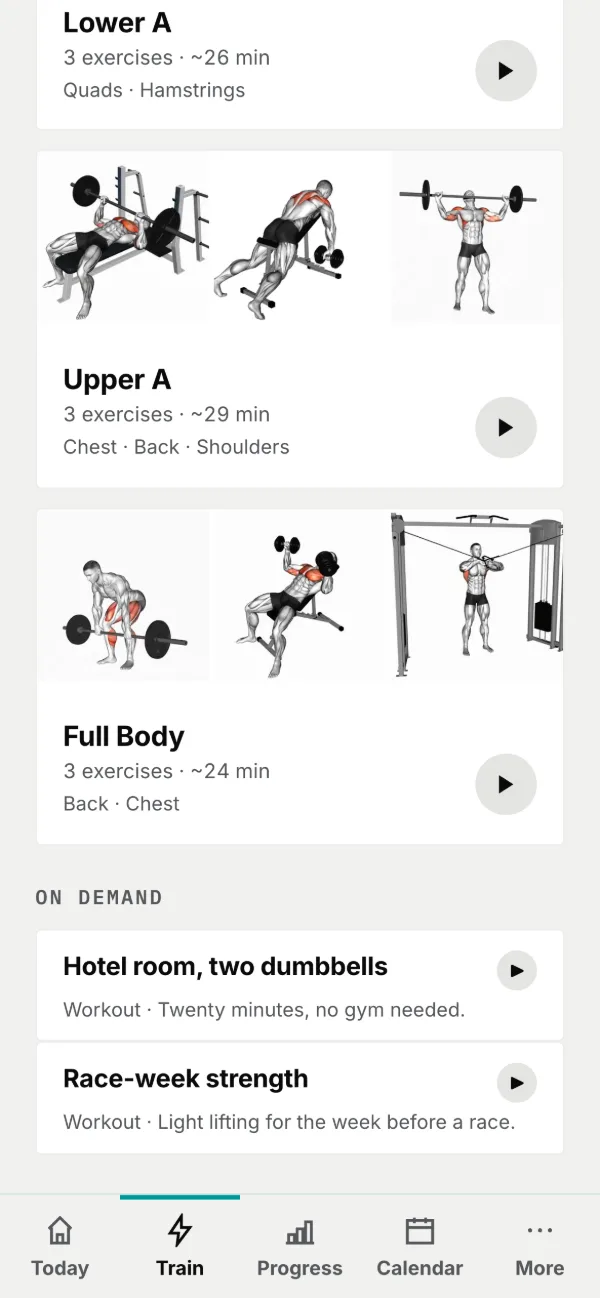
Where they are
Two kinds. A workout opens like any of your own routines and you log sets as normal. A video plays a session your coach filmed.
Some videos have a workout attached. When they do, the video stays on screen at the top while you move through the exercises underneath, so it never restarts.
For a video with no workout, there is an I did this · log it button, which records a session named after the video so it counts in your history and your streak.
Training Mode
The guided way to train: one exercise, one set at a time, with a demo, weight/rep steppers, and a rest timer that keeps going even if your screen locks.
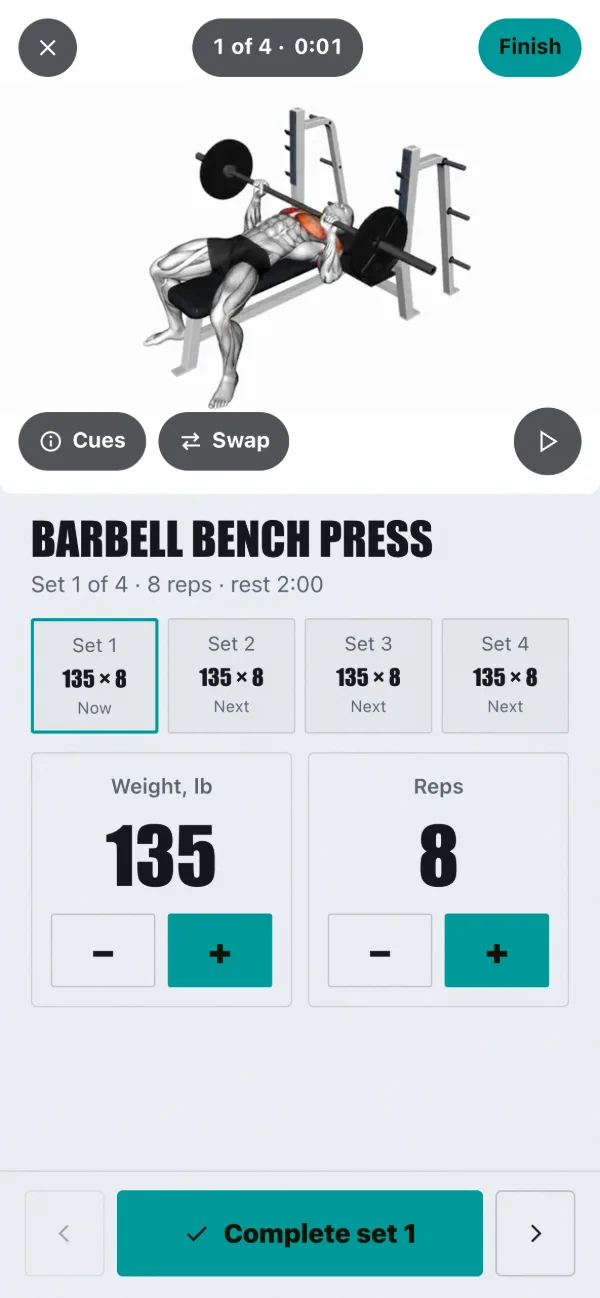
- The exercise demo fills the top, with Cues and Swap on it. Under it, the exercise, which set you are on, and a strip of every set (a done set shows what you logged).
- Set your weight and reps with the −/+ steppers (or tap the number to type).
- Tap Complete set. That logs the set and starts your rest: a large dial counting down, with −15 s and +15 s, and your next set shown above Skip rest.
- › moves on without logging the set you are on. On the last set the button becomes Finish workout.
Tap the pill at the top (where you are, and the workout clock) for the workout menu: Exercise cues, Form check, Swap exercise (a coach-provided alternative, and your numbers carry over), Add an exercise, Workout settings (units, rest length, sound and haptics, keep the screen awake), a Plate calculator, and Finish workout (the same as the Finish pill: it saves what you've logged). In a superset the screen lists both exercises; you do them back to back, then rest.
Logging on one screen
Prefer to see the whole workout at once? "Log manually instead" gives you every exercise as a card. Sets log themselves the instant you fill them in.
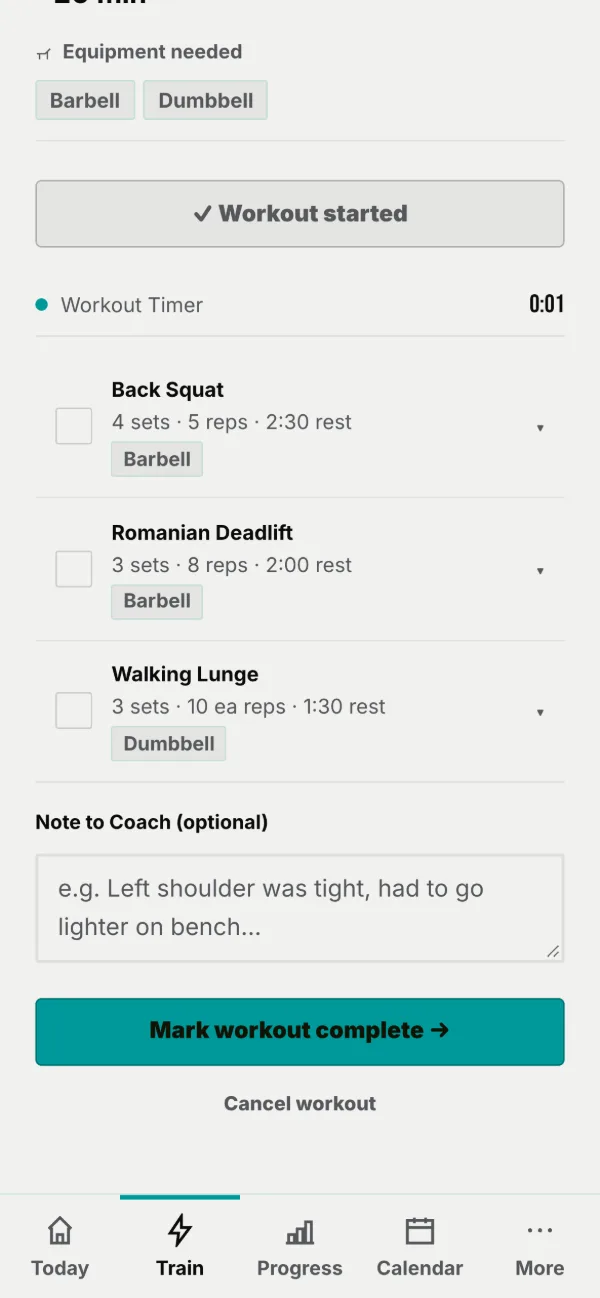
- Tap an exercise card to expand it. You'll see the demo, your coach's note, and Last Session (what you did last time).
- Under Log Your Sets, type your weight and reps. The set completes itself the moment both are filled: the star fills and your rest timer starts. There's no "done" button.
- Tap one Effort rating (Easy / Moderate / Hard / Max, though your coach may rename these). It applies to all sets of that exercise.
Supersets, drop sets & warm-ups
Some workouts have special structure. Here's how each one works when you're logging.
- Supersets: grouped exercises show in one box marked "⇅ SUPERSET." Do one set of each back-to-back, then rest. You give one effort rating for the whole superset.
- Drop / cluster sets: a set with several weights shows numbered segments. Fill each one in order; the set completes when every segment has reps.
- Warm-up & cool-down: these are check-offs, not logging. Tap Complete on each as you do it.
Form-check videos & swaps
Film a set for your coach to review, or swap an exercise for a coach-approved alternative.
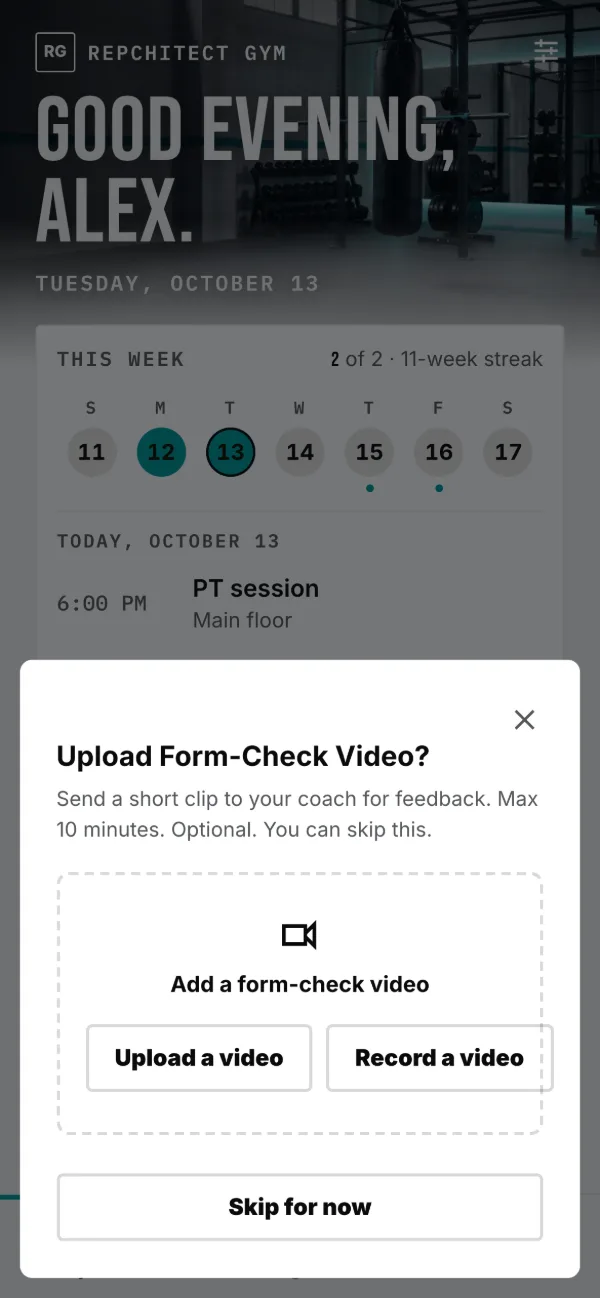
Add a form-check video
- On an exercise, tap Add form-check video (or Form check in Training Mode).
- Pick or record your clip. It shows "✓ Video attached" and sends to your coach when you finish the workout.
Swap an exercise
- Under Swap Exercise (or ⋮ → Swap exercise in Training Mode), tap Swap on an alternative.
- Your sets, reps, and weight carry over. Tap ↩ Undo swap to go back.
Finish & send to your coach
When you're done, finish. Your workout is saved the moment you do; then you can tell your coach how it went.
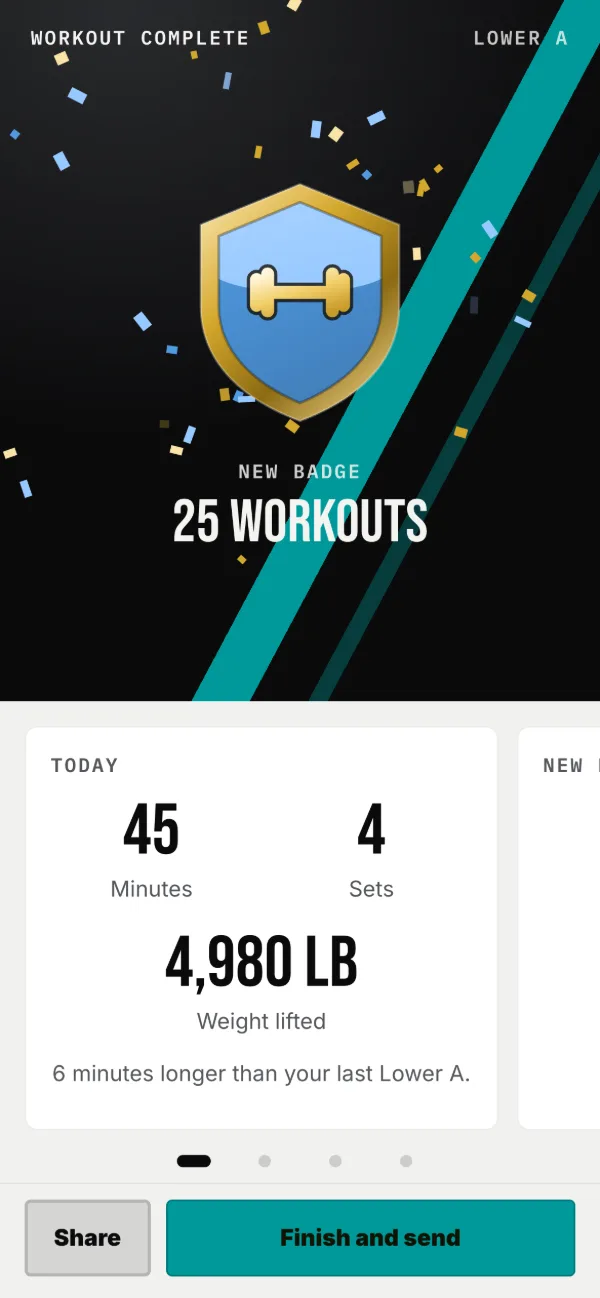
- Tap Finish workout in Training Mode (or Mark workout complete when logging on one screen), and confirm. You need at least one logged set. Your workout is saved there and then.
- Workout complete opens: any badge you just earned at the top, then cards to swipe: Today (minutes, sets, weight lifted, and how it compares with last time), any new records, a fun fact, and last a Note to your coach.
- On the note card, write a note, add a Form check video, and Rate effort from 1 to 10, then tap Finish and send. All three are optional; a form check reaches your coach as soon as it uploads.
To scrap a workout, tap Cancel workout → End & delete workout. Your coach's reply comes back to Messages on your Today screen and appears at the top next time you open that routine.
Message your coach
Messages is your chat with your coach: text, photos, video, their feedback clips, and a card for every workout you send.
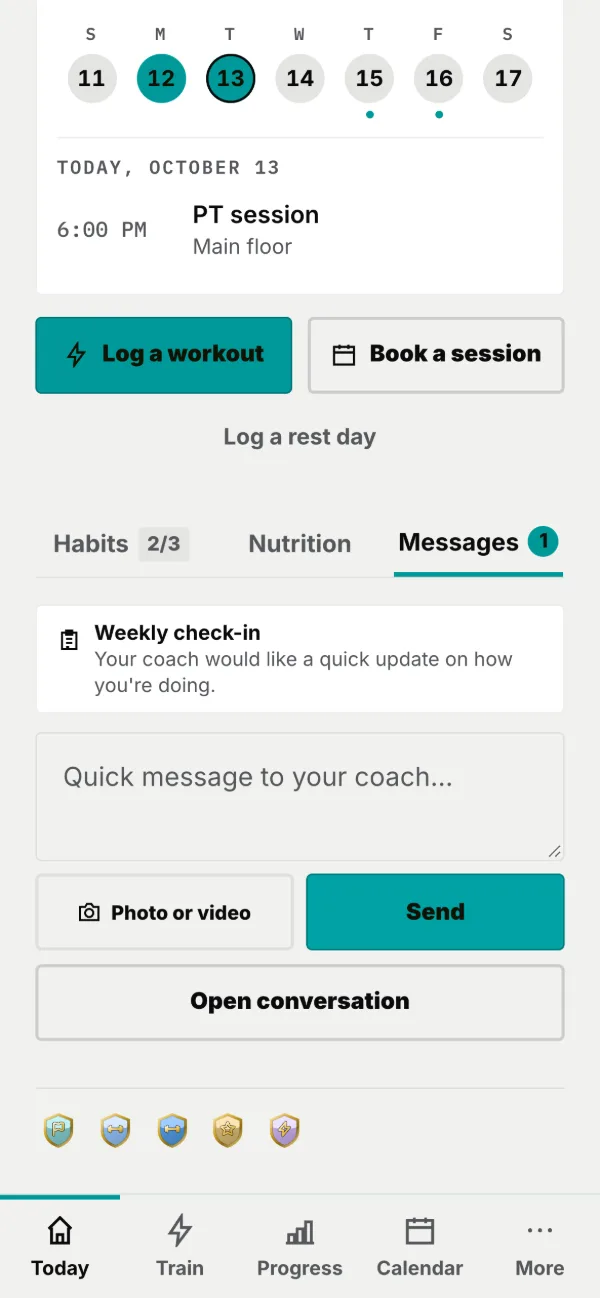
Open the Messages tab of the hub on Today (or tap a new-message alert). The ‹ takes you back.
- Type in Message your coach… and tap →.
- To send a picture or clip, tap Upload photo / video or Take photo / video. Photos send instantly; videos upload with a progress bar and need a connection.
- Your coach's video feedback plays right in the thread. Tap to watch.
Community board
A place where you and some of your coach’s other clients can see each other. It is the one screen where that happens, and you decide whether to be in it.
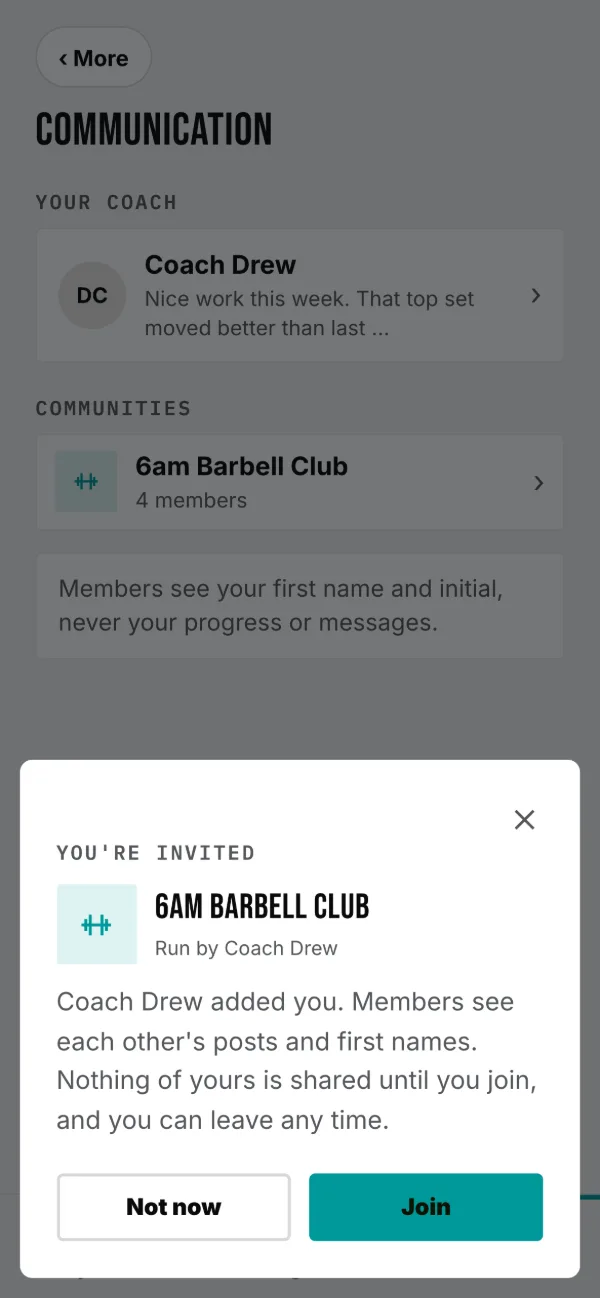
Joining
If your coach adds you, an invitation appears on your Today screen. Until you tap Join you can see the board’s name and nothing else: no posts, no members, no names. Not now declines it.
What others see of you
Your first name and the initial of your last name, so Sam H. rather than your full name. Members see what you post on the board and nothing else about you.
Posting
It reads like a chat: your posts on the right, everyone else’s on the left, newest at the bottom. Write up to 2,000 characters, or tap + to add a photo or a video of up to 90 seconds. A post your coach pinned also shows at the top. If your coach posts a workout, tap it to start it in Training Mode; it logs as an extra workout and does not change your program. Replies sit under a post in the order they were written. There are five reactions and you can leave one of each on a post; tapping again takes it back.
You can delete anything you posted from the ⋯ beside it, which removes it for everyone along with its replies. Only your coach can pin a post.
A gym board
If your coach works at a gym, one of the boards may be the gym's own. It works the same way, except the other members train with different coaches at the same place. The invitation says so before you decide.
Leaving
Tap the ⋯ beside the community’s name, then Leave this community. You stop seeing the board and its members stop seeing you. Anything you already posted stays where it is, and your coach can invite you again later.
Stats, records & history
The Progress tab has three views: your Stats, your body Measurements, and your full History. Switch with the toggle at the top.
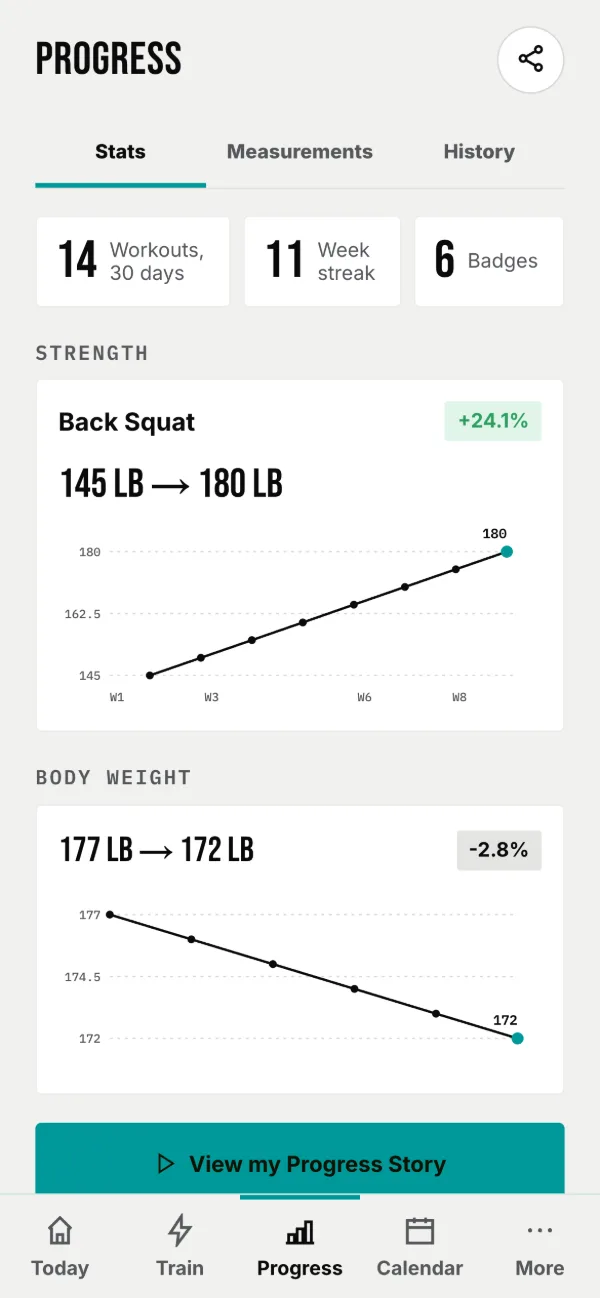
- Stats: three tiles (sessions in the last 30 days, your week streak, badges earned), a Strength chart of the lift you log most, your Body weight over three months, View my Progress Story (a card to share), your achievements, benchmarks and personal records, and More numbers (total volume and reps). Tap a tile or a row for its detail.
- Measurements: log body weight and site measurements, and keep private photos (next page).
- History: your full Client History timeline: every workout, coach message, PT session, check-in, measurement, and swap, newest first. Items marked ★ Feedback have a coach reply.
The toggle always opens on Stats; tap Measurements or History to load those.
Measurements & progress photos
Track your body weight and measurements over time, and keep progress photos that only you can see, unless you choose to share a before and after.
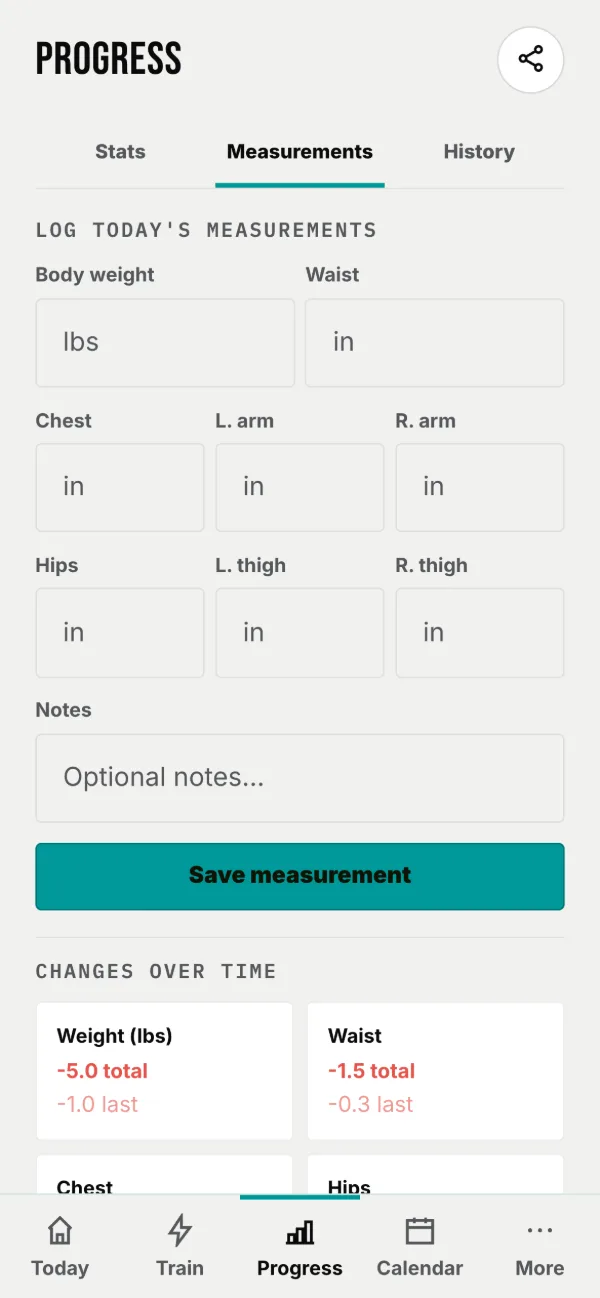
- Under Log Today's Measurements, enter your Body Weight and any sites (Waist, Chest, arms, hips, thighs) plus notes.
- Tap Save measurement. You'll then see change-over-time cards and a weight-trend chart.
- To add a photo, tap Choose photo or Take photo under Progress Photos.
- To show your coach how far you've come, tap Share a before and after, pick your before photo, then your after photo, and tap Share with my coach.
- Your shares are listed under Shared with your coach, with a note when one is on your coach's public page. Tap Stop sharing to take one back.
Check-ins
Every so often your coach asks for a quick update on how the week went. It is a short form, one question per screen, and it takes about a minute.
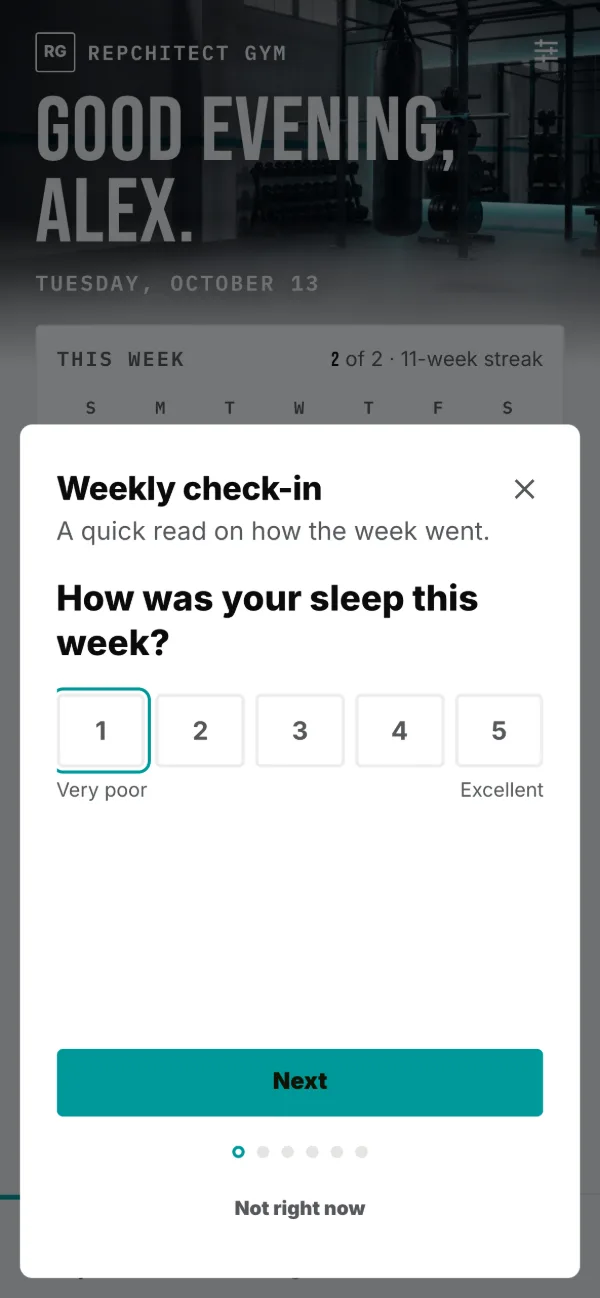
- When one is due, a card appears on your Today screen under Messages. Tap it.
- Answer one question per screen. Most are a 1 to 5 scale with your coach's own wording at each end; some are a short answer or a yes or no.
- Next moves on, Back returns. The dots along the bottom show how far you are.
- The last screen asks Anything else for your coach? Then tap Send.
Nutrition
Every client has the Nutrition tab. Set targets, log what you eat, and follow your coach's plan if they've written one.
- Targets: set your own any time. If your coach sets a target for a macro, theirs wins for that macro, and the app tells you which numbers are whose.
- + Add Food, four ways: Search a large food database; Scan a barcode with your camera (or type the digits under the bars); Recipes (save a meal once and log it as one food); Manual (type the label values per 100 g once, and every future scan of that packet resolves instantly).
- Fix a mistake: tap a logged item to change the amount or meal. No deleting and re-entering.
- Your plan: if your coach wrote one, View plan shows their reasoning, daily targets (sometimes ranges), an eating window, suggested foods, meals for each weekday, and supplements.
Book a session
When your coach publishes available times, you can book, reschedule, and cancel yourself, straight from Today or your Calendar.
- Tap Book a session (on Today, or on your Calendar).
- Pick a time from the list your coach published. Booking is instant, with no approval step.
- Reschedule or cancel from the session on your Calendar. Your coach sets how much notice they ask for; inside that window the app tells you to message them instead. That's their policy, not an error.
- Group classes: if your coach has put you in a class, book your spot in any upcoming session (not booking simply means you're not coming). A full class shows Full. Dropping out follows the same notice window.
- If two people go for the last slot, one of you sees "that time is no longer available". Just pick another.
Your calendar
See your booked sessions, home workouts, and rest days, and sync them to your phone's own calendar so you never miss one.
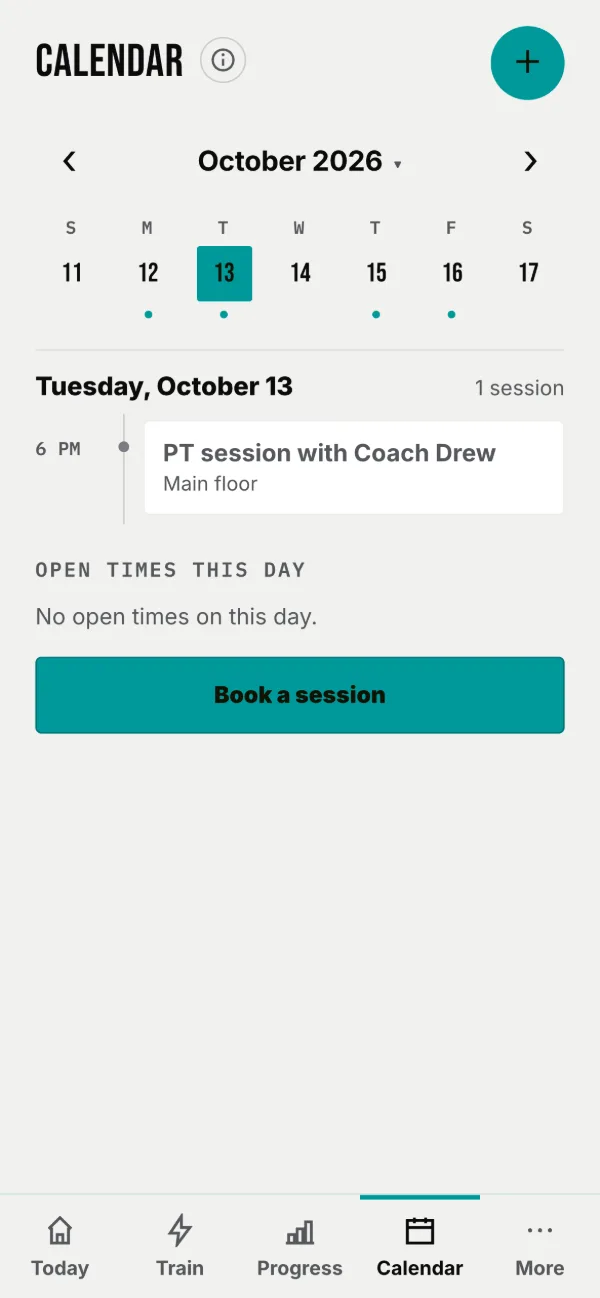
The week runs across the top: swipe it, or use the arrows beside the month, and tap a day to see it as a timeline below. Under that, Open times this day lists the times your coach has opened for booking, if any.
Add your own event
- Tap the round + by the title, then Add to calendar. Pick a type (Home workout, Rest day, In-person session, or Other) and a date and time.
- Tap Add to calendar. (Your coach's PT sessions are managed by them and can't be edited here.)
Sync to your phone's calendar
- Tap Export, then Subscribe on this device. It keeps your phone's calendar auto-updated.
- Or Download once for a one-time copy. Keep this link private. It's yours.
Your coach's details
Everything about your coach lives in one place: how to reach them, their packages, and any partner offers.
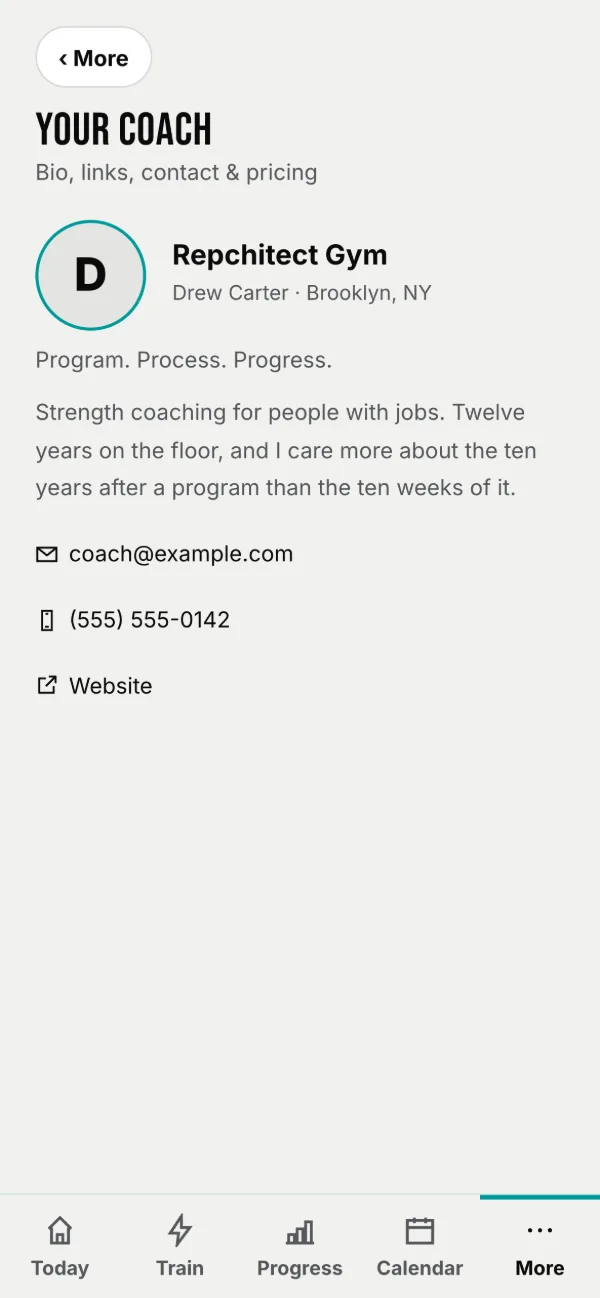
Tap your coach’s card at the top of More to see their bio, city, and tagline; their contact (email, phone, and a 🌐 Website ↗ link); their Packages pricing; and any Partner Offers they've shared (these open in a new tab).
Resources
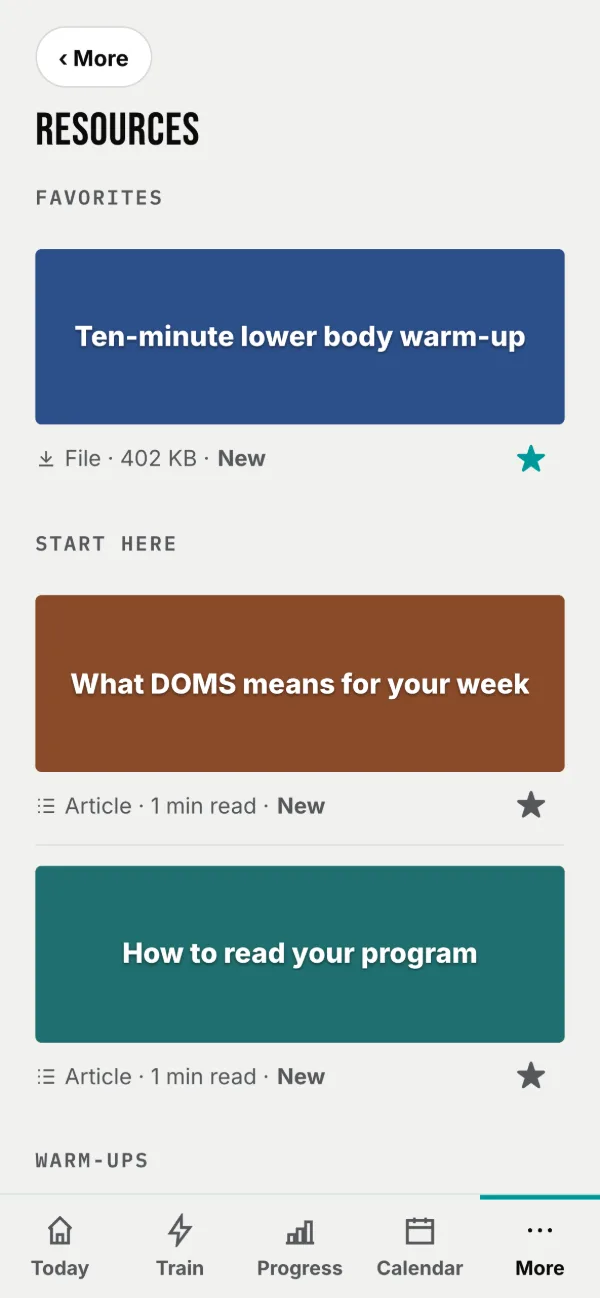
Files, links and articles your coach has shared with you. Star the ones you keep coming back to.
Opening them
- An article opens right here, and says how long it takes to read.
- A file opens in a new tab. PDFs, spreadsheets, images.
- A link opens the page in your browser.
Tap the star on any row to move it to Favourites at the top. Anything added since your last visit carries a New marker.
Notifications
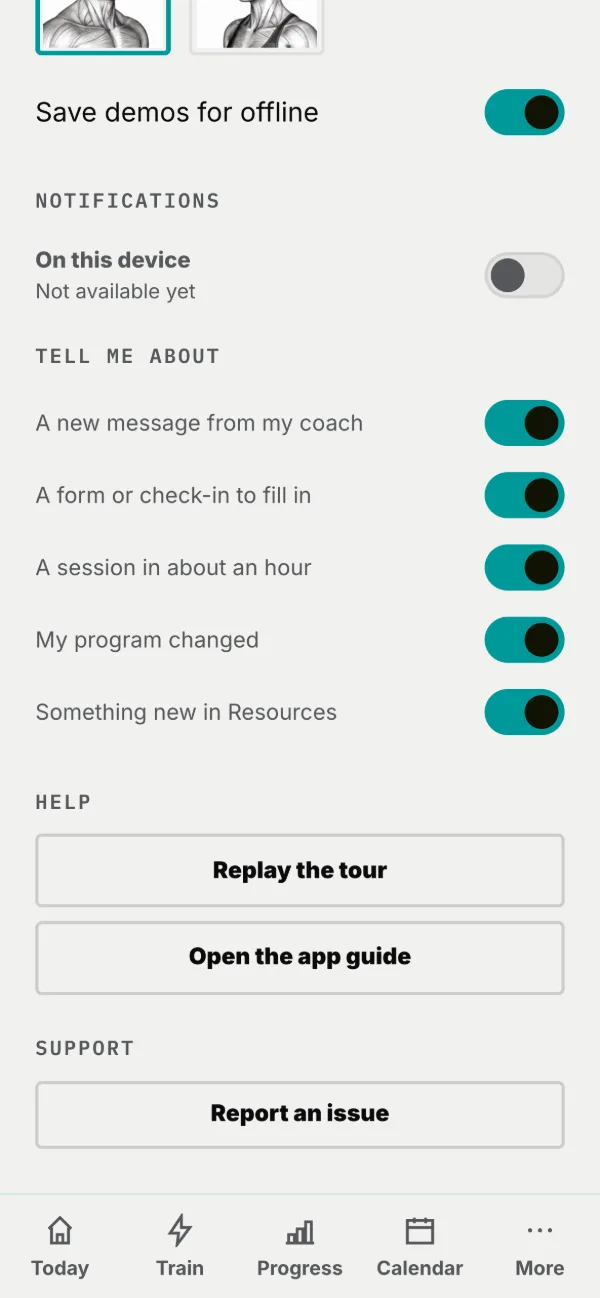
A nudge on your phone when your coach writes, when a check-in is waiting, or an hour before a session. Off until you turn it on.
Turning them on
Flip On this device and your phone asks once. Each device is separate, so your phone and your laptop are set up one at a time.
What you can be told about: a new message from your coach, a form or check-in to fill in, a session in about an hour, your program changing, and something new in Resources.
Settings & your info
Update your details, choose light, dark, or auto, pick your demo model, and adjust text size, all from Settings.
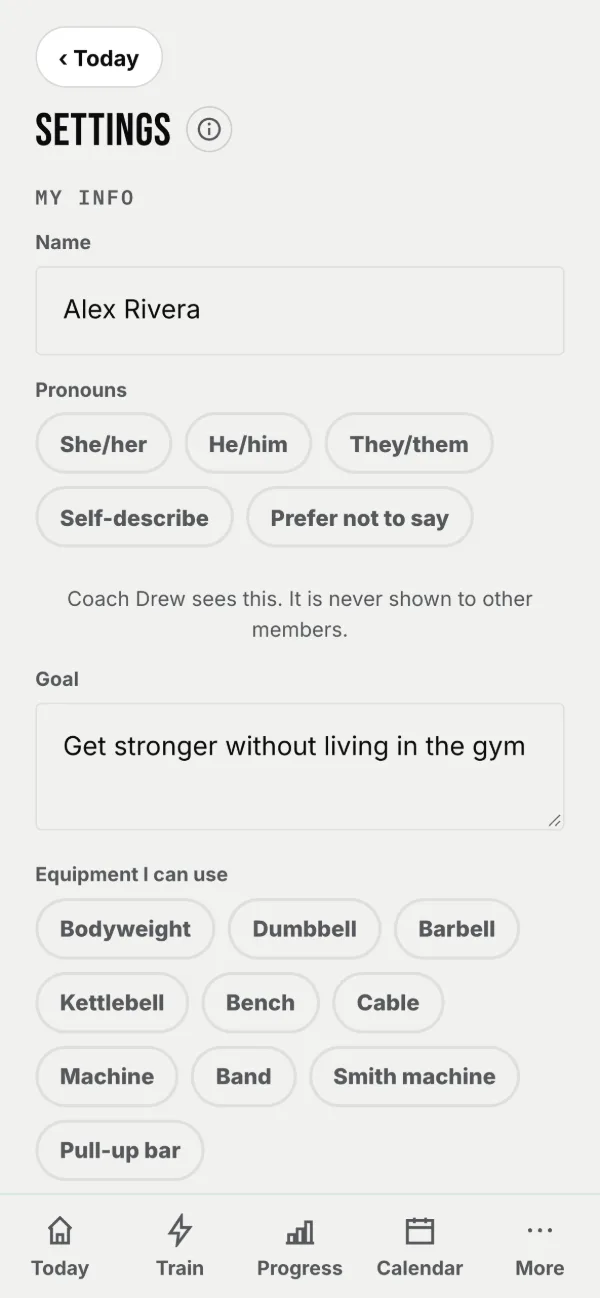
Open it from More → Settings or the gear at the top of Today.
- My info: your name, goal, pronouns (your coach sees them; other members never do), and tick the equipment you can use, then Save my info.
- Display: Auto, Light or Dark (Auto follows your phone), text size and high contrast. Your coach sets the look; you pick the mode.
- Exercise demos: tap the picture of the demo model you want to see in exercise videos.
- Help: Open the app guide. Support: Report an issue with an optional screenshot.