The gym console
As a gym owner you get a second view on top of your normal coaching app: a console to manage your trainers, move clients between them, and set one brand for the whole gym. Your own clients you still coach exactly like any trainer.
Two views, one login
A gym admin is a trainer whose account also owns a gym. You have the full trainer dashboard for your own clients (that's the Trainer guide), plus the Gym Admin console for running the team.
- Log in to the trainer app as usual (email + password).
- Tap More, then Gym admin under Account. It only appears for gym owners, with how many seats you are using.
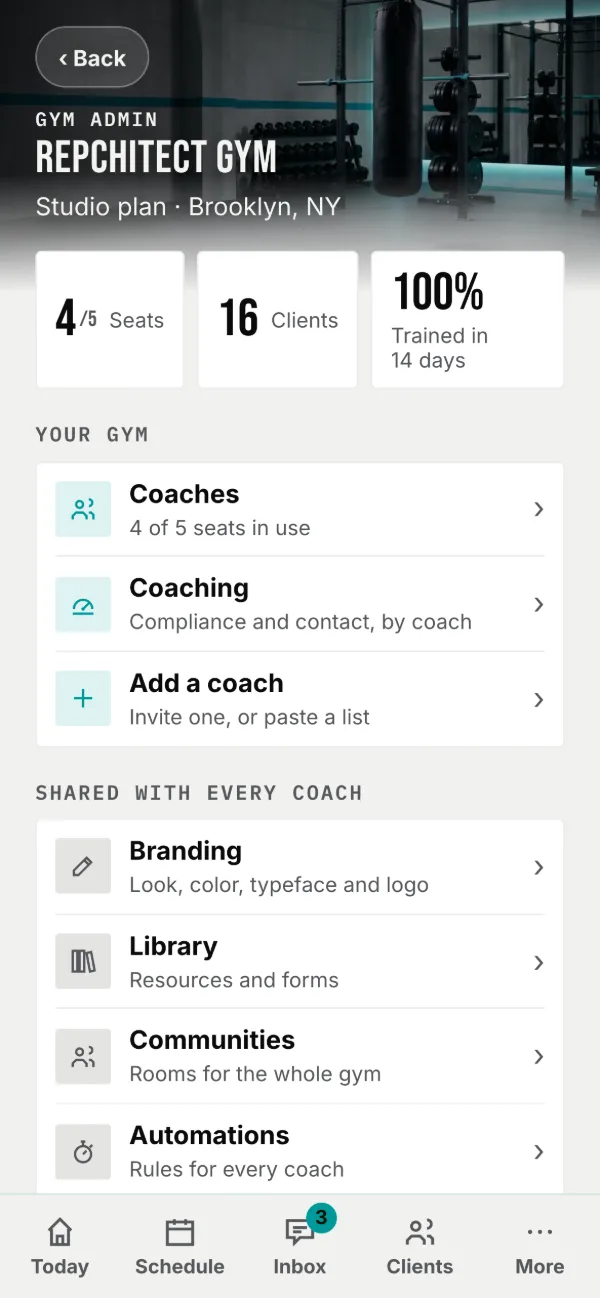
- The console opens on a menu titled with your gym's name. Your gym holds Coaches, Coaching and Add a coach; Shared with every coach holds Branding, Library, Communities, Automations, Client sharing and App icon. ‹ Back steps out of a section, then out of the console.
- Gym admin guide, at the foot of the menu, opens this guide.
Your gym at a glance
The top of the console is three cards: how many coach seats you're using, your clients, and the share of them who trained in the last two weeks.
| Tile | What it means |
|---|---|
| Seats | Coaches in use / your plan's seat limit. |
| Clients | Every client across all your coaches. |
| Trained in 14 days | The share of your clients who logged a workout in the last 14 days. |
Your trainer roster
Open Coaches for one row per coach: their name, email and how many clients they carry. Tap a row for what you can do with that coach.
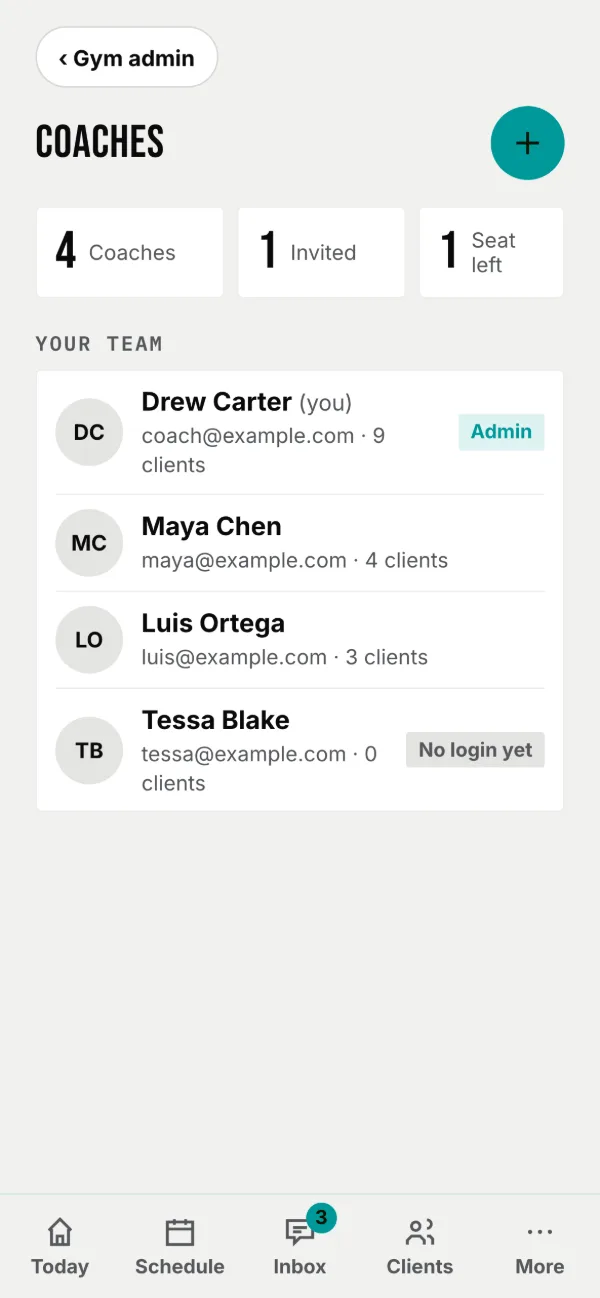
Each row shows the coach's name and email, their client count, and status tags:
- Admin: this coach is also a gym admin.
- No login yet: they have not signed in. Tap the row to send the invite again.
- Paused: their access is paused (the row is dimmed).
Tap a row to reassign a client, pause or unpause the coach, release them or close their account. Your own row has no Pause, so you can't lock yourself out. The tiles above count your coaches, the invites not yet accepted, and the seats you have left; the round + adds a coach.
Add a trainer
Add coaches one at a time, or paste a whole list. Each coach uses one seat and signs in with the email you enter.
Add one coach
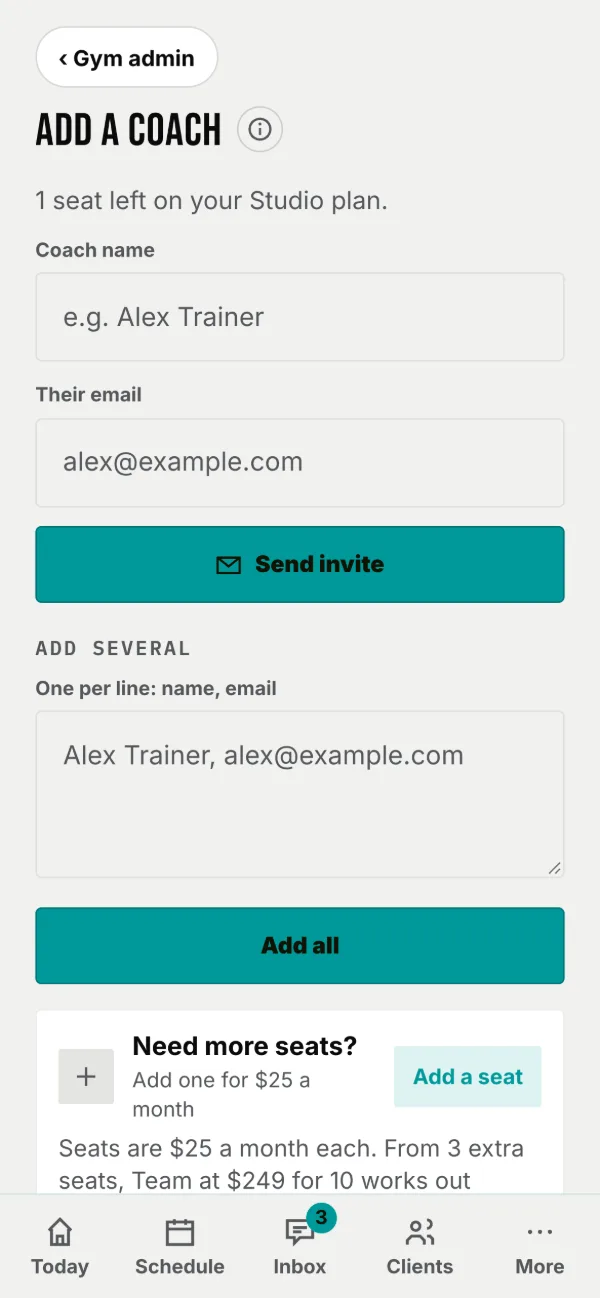
- Open Add a coach. The line at the top says how many seats you have left.
- Enter the Coach name and Their email (the one they'll sign in with).
- Tap Send invite. They get an email to set a password, and the roster updates.
Add many at once
- Under Add several, paste one coach per line as name, email.
- Tap Add all. You'll get an "Added X of N" summary.
Pause & unpause a coach
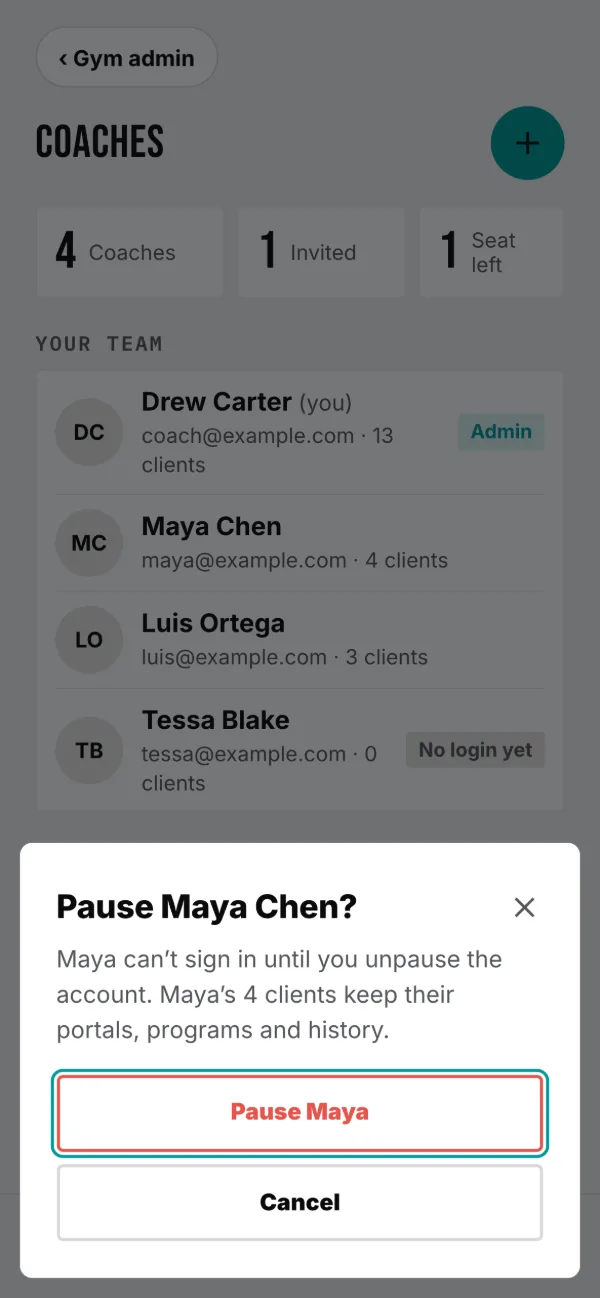
Pausing stops a coach signing in without deleting anything. Their clients keep their portals, programs and history. Use it when someone's on leave.
- In Coaches, tap the coach's row.
- Tap Pause (or Unpause to restore).
- Pausing asks first, by name. Tap Pause and their first name to confirm. Unpausing takes effect right away.
You can't pause yourself. Your own row has no Pause.
Seats & your plan
Your plan sets how many coaches your gym can have. Whoever pays for the gym can add a seat at any time, from Add a coach.
- The Seats tile shows used / limit, and Add a coach opens on how many are left.
- Need more seats? Tap Add a seat. It asks first and names the monthly price; Stripe charges the part-month now.
- Past the point where the next plan works out cheaper, the button reads Change plan and says so.
- When every seat is in use, the add form steps aside until a seat is free.
Reassign clients to another coach
Move a coach's clients, with their full history, to another coach in your gym. Clients keep their portal link and everything they've done; only the coach changes.
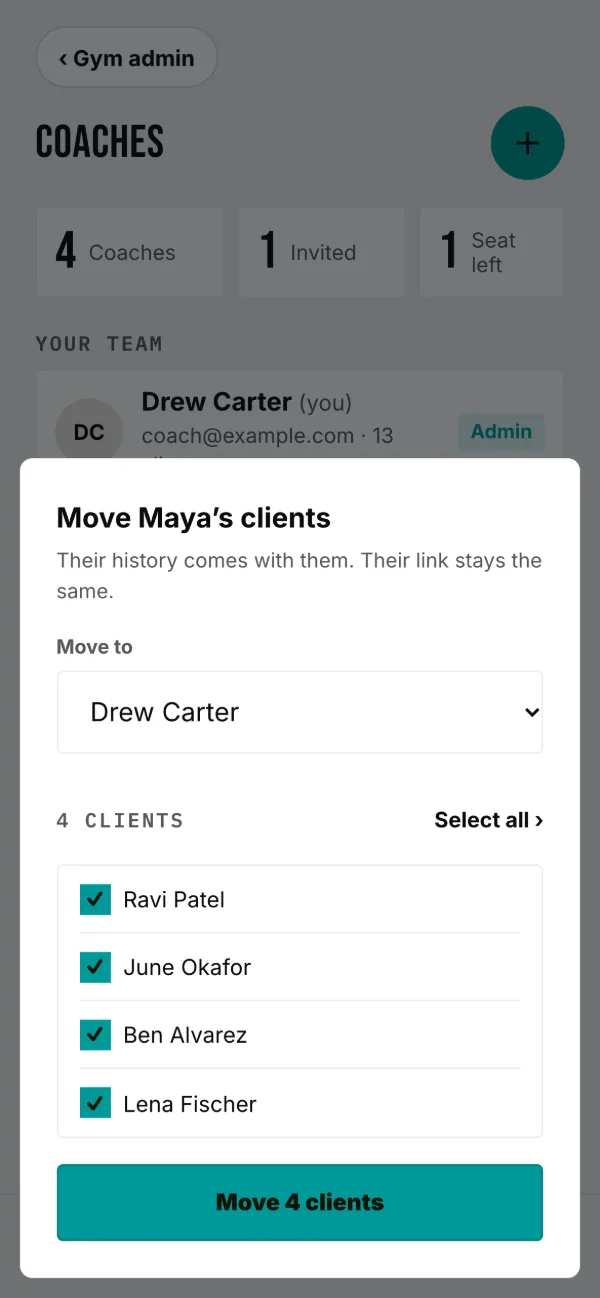
- In Coaches, tap the coach's row, then Reassign a client.
- Choose the destination coach in Move to (only active coaches other than the source appear).
- Every client starts ticked. Untick any to leave with the current coach; Select all ticks or clears them all.
- Tap Move 4 clients (it counts the ticks) and confirm. Done.
Gym branding
Set one look for the whole gym: one of six looks, then your name and logo, main color, typeface, header photo and corners. It appears on every coach's app and every client's portal, so your brand stays consistent even if a client's coach changes.
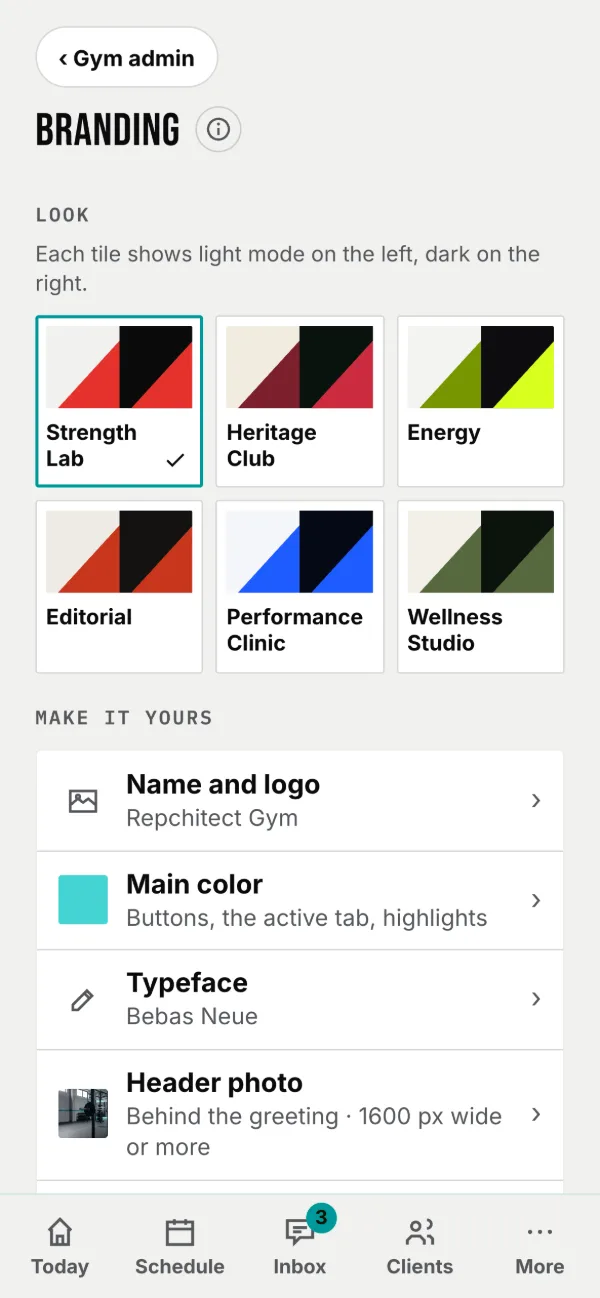
- Open Branding from the console menu.
- Pick one of six looks: Strength Lab, Heritage Club, Energy, Editorial, Performance Clinic or Wellness Studio. Each tile shows it light and dark, and the page previews itself as you choose.
- Under Make it yours: Name and logo (your gym or studio name, and a logo, resized for you); Main color (twelve swatches, or type your exact brand color as a hex code); Typeface for greetings, titles and big numbers; Header photo, one of ours or your own; and Corners. Each page has its own Save.
The gym library
Resources, forms and boards the whole gym shares, plus everything your coaches have offered to it.
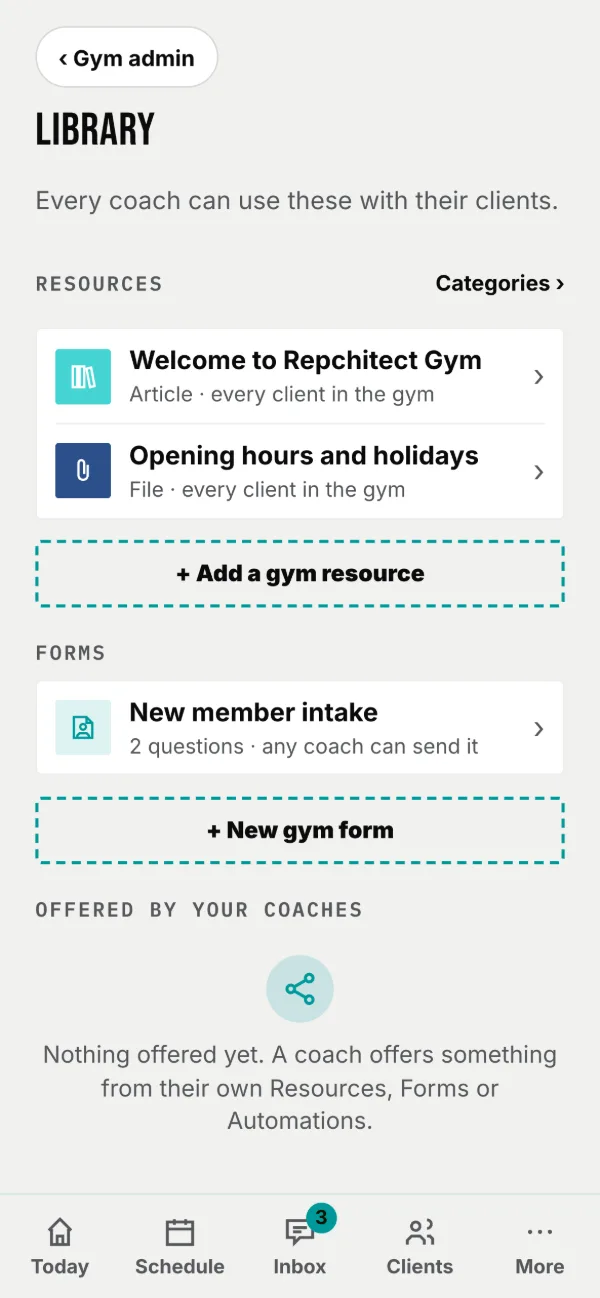
Gym resources
A file, a link or an article that reaches every client in the gym, whichever coach they train with. A handbook, a parking map, your cancellation policy. There is no picking: a gym resource is for everybody, which is what makes it a gym resource.
Your coaches see it under From your gym in their own Resources screen, and their clients see it in the same list as everything else, marked as coming from the gym.
Gym resources have their own categories, separate from any coach’s. Tap Categories beside the Resources heading to name and order them. Deleting one leaves the resources in place, without a heading.
Gym forms
A form any coach can send to their own clients. The answers come back to that coach, in their own thread with the client, because the person who sent it is the person who needs to read it.
Gym boards
One room for the whole gym. You create it; every coach opens it from More, then Communities, and invites their own clients. A coach never sees another coach’s roster, and every client still has to accept before they can read a single post.
Offered by your coaches
When a coach turns on Offer to my gym, the item appears at the foot of Library with their name on it. Adopt takes a copy.
Gym automations
Rules that run for every coach in the gym, in that coach’s own name.
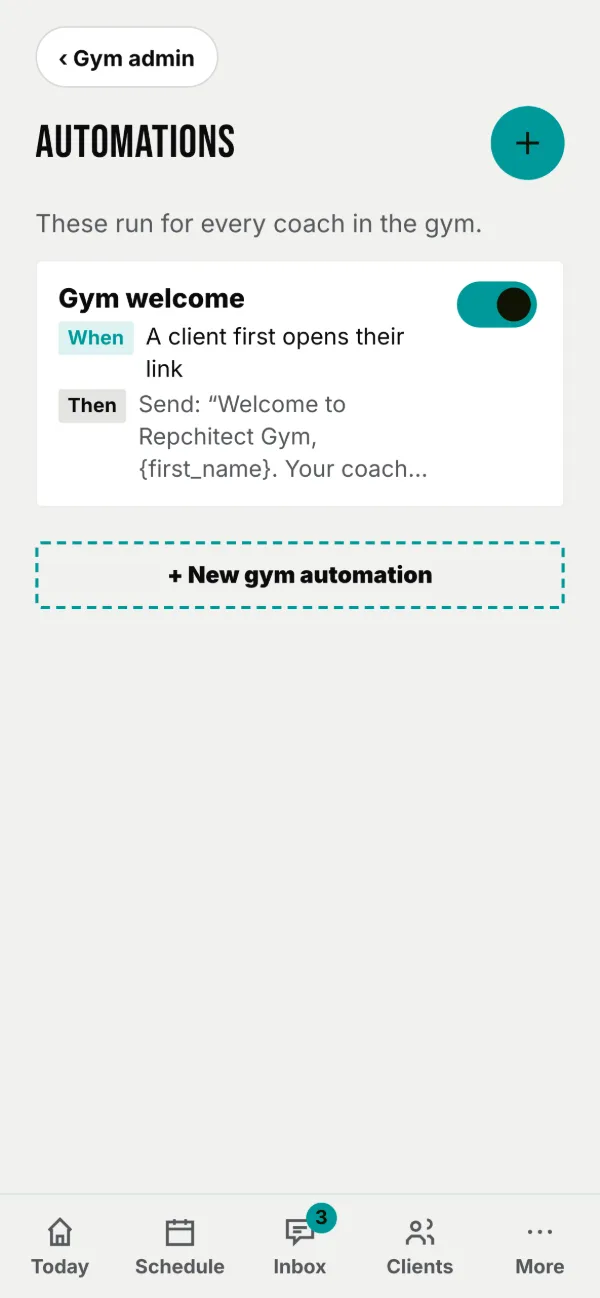
Set one for everybody
The builder is the same one your coaches use: a trigger, an optional wait, then one action. The difference is who it runs for. A rule you set here is evaluated for every active coach in the gym, against their own clients, and the message arrives in that coach’s thread as though they sent it, marked Sent automatically.
Use it for the things that should be true of the whole gym: a welcome when somebody opens their link, a reminder when a check-in is overdue.
What your coaches see
Your rules appear in each coach’s own Automations screen under From your gym, marked Set by your gym. They can read them, so they always know what is being sent in their name. They cannot edit them, switch them off or delete them, and they never see how often one has fired.
Each coach can still add their own rules alongside yours, and you do not see those here.
Help & team setup
Where to find the built-in reference, the fastest way to stand up a new team, and which tasks need the platform admin.
In-app help
- Gym admin guide, at the foot of the console menu, opens this guide.
- To report an issue, use your normal trainer Settings → Support → Report an issue (the gear, not the gym icon).
Quick team setup
- Add each coach by name + email (single or bulk).
- Have each coach sign in once so their login links.
- Pick your gym's look, then its name, logo, main color and header photo, in Branding.
- Assign or reassign clients to the right coaches.